Chat App Usage
Sending & replying messages
If you're using your phone, you can just swipe the message left or right to start replying.
On desktop systems, you can double click the message instead.
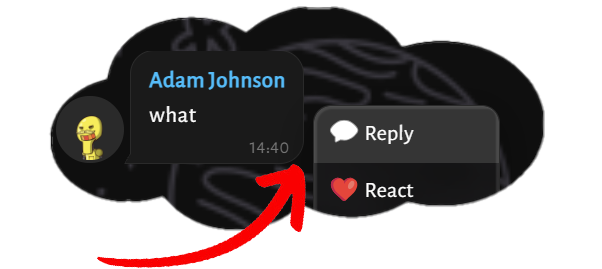
Or you can right click (click - in phone) and select the first option.
Message options
And once you open the message options, you'll see several other buttons:

❤️ React
You can add an infinite amount of reactions to a message, which can be an Emoji or a custom sentence:
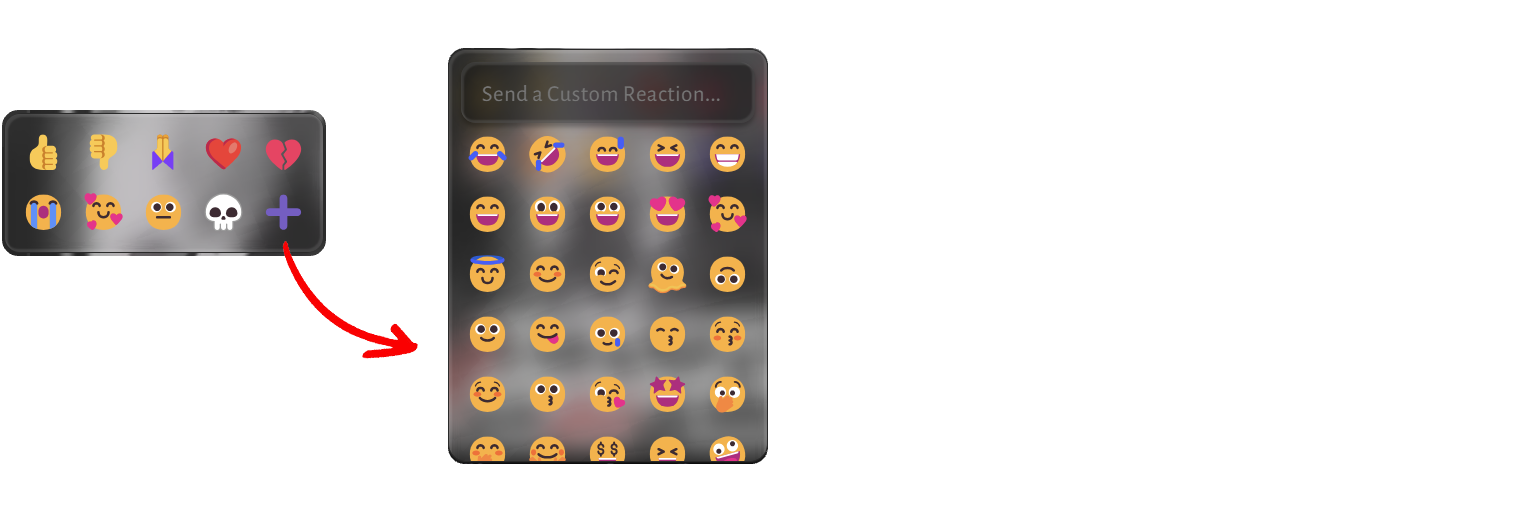
➕ Custom reactions
There are more than 150 reactions available in the panel.
But if you can't find the one you're looking for, you can just type the reaction in the Custom Reaction section and press Enter!
📋 Copy Text
Simply copies the message.
The copied text keeps Markdown as the original raw format, which differs from a visible Markdown message.
📍 Un/Pin
Everyone can pin or unpin a message. Since there is no account creation, there can't be any permission settings / administrators.
A pinned message will remain forever in the 📌 Pinned Messages modal.
💾 Download (Media)
This button initiates a download for the message's media.
This includes:
- Images
- Videos
- Audios (music & voice)
- Files
Files sent by users can be malicious or potentially unsafe. Do not execute random / sketchy programs sent by untrusted users.
®️ Add to Recent (Media)
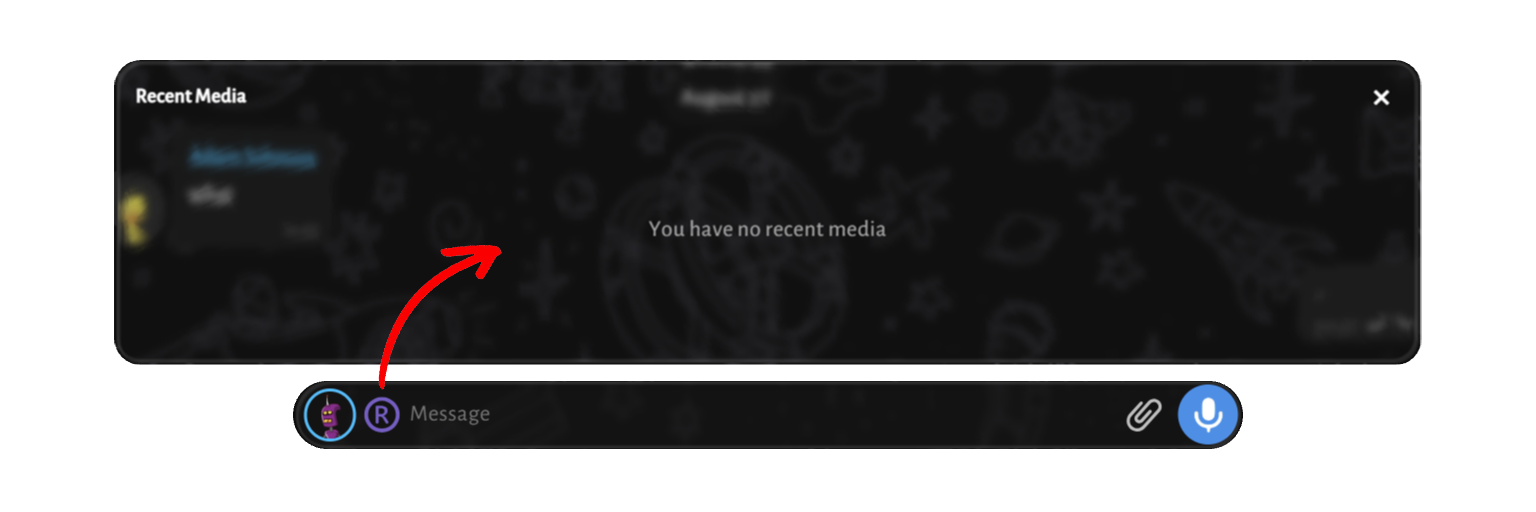
Your ®️ Recent Media panel contains your latest GIFs and stickers. You can quickly send them back using this panel.
You can also remove, add and re-arrange your saved media.
✏️ Edit (Self)
Simply edits your messages (only text).
This action does not modify an already sent push notification.
🗑️ Delete (Self)
Simply prompts you to delete your message.
This action does not remove an already sent push notification.
👁️ Views (Self)
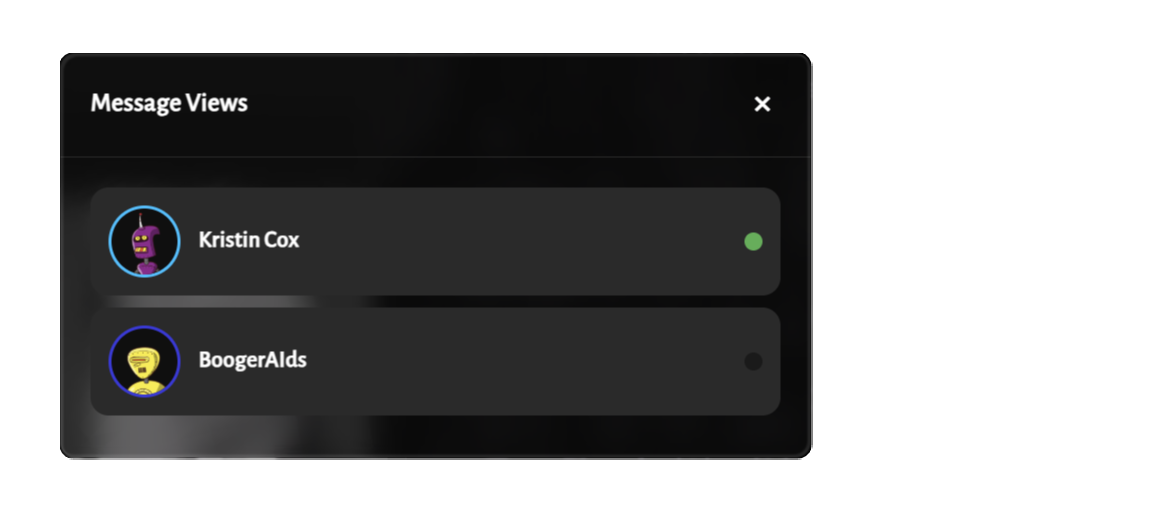
Whenever your message gets a two-tick indicator ( ), you can open this panel to find out who saw your message.
Some users might be Unknown due to lack of recent messages, or being offline for a long time.
Users list
There are several ways to check the users in your room.
The server does not store any kind of Members list for rooms, therefore there is no consistent way of subscribing to a room.
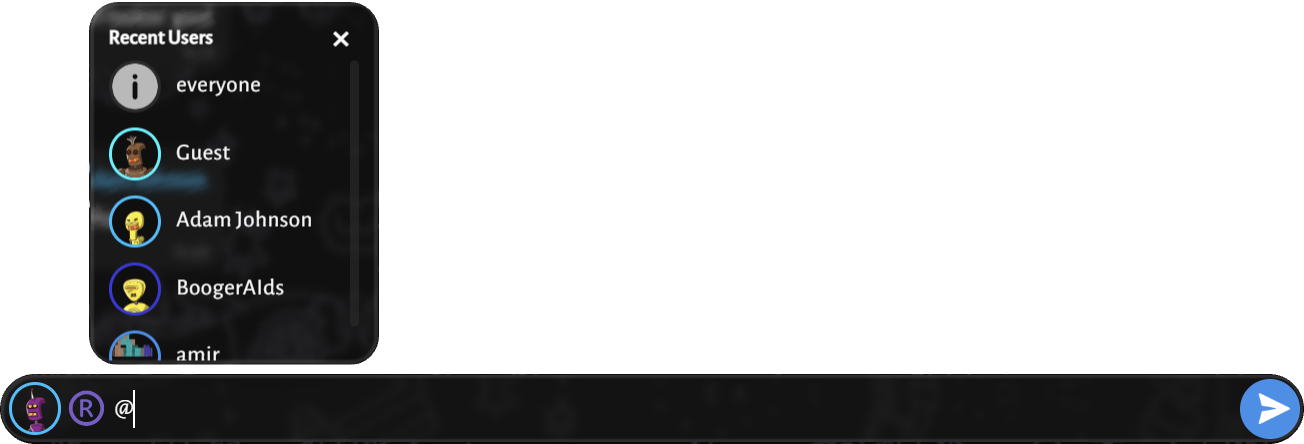
For example, you can type @ in chat to bring the list of Recent Users up. You can click on any user to start mentioning them.
Other than that, 👥 Online users panel can show you the list of currently online users, with their current video time (if any) visible.
This can be useful if you want to check if everyone's video states are in sync.
Finding messages
When the room's messages count up to a massive amount, you might need to somehow find the older messages:
🔎 Search chats
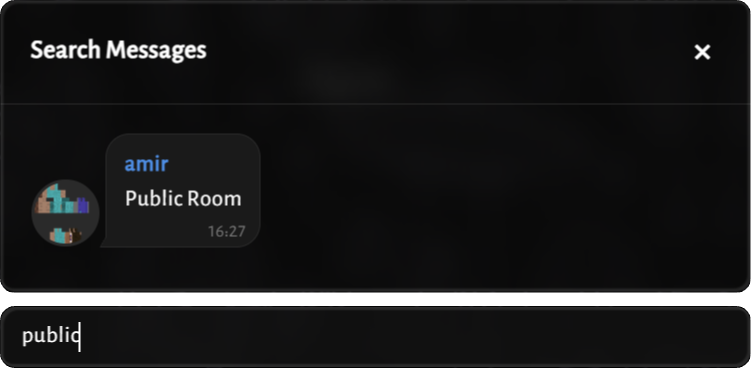
In this panel, you can type your query and press Enter.
The search's results are limited to 200 messages.
📌 Pinned messages
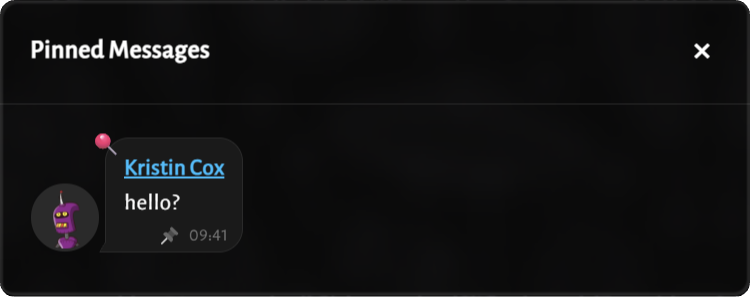
Pinned messages are visible in this panel.
You can direcly unpin a message by clicking the 📍 icon on top of the message.
Voice chat
You can watch and talk at the same time, chatting is not the only option.
The voice chat uses a browser native communication method called WebRTC.
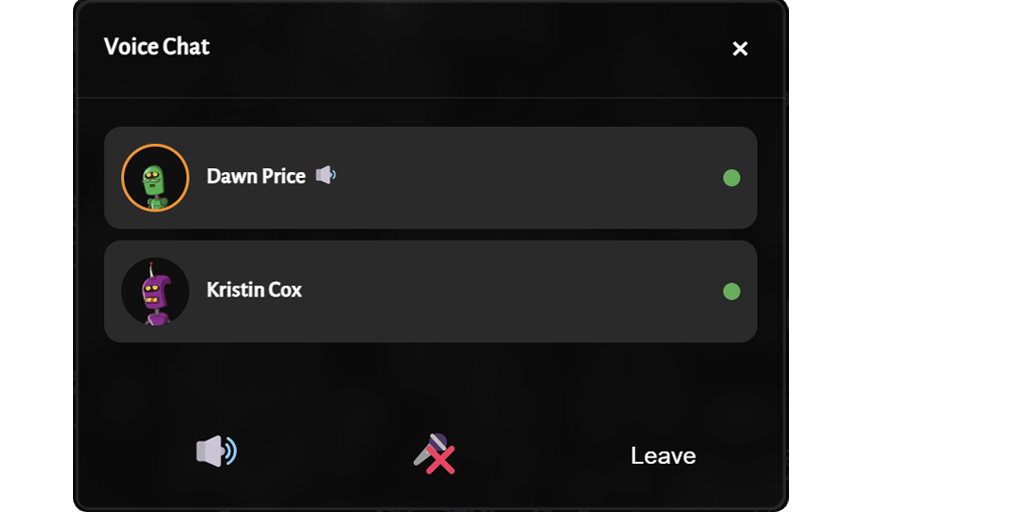
This is a Peer-to-Peer realtime communication system that connects clients to each other, which leaks your IP address to everyone.
To protect your privacy, your connection will be tunneled through the server, and then it reaches other clients.
That way, each participant will only see the server's IP address instead of a client's.
Blocking users
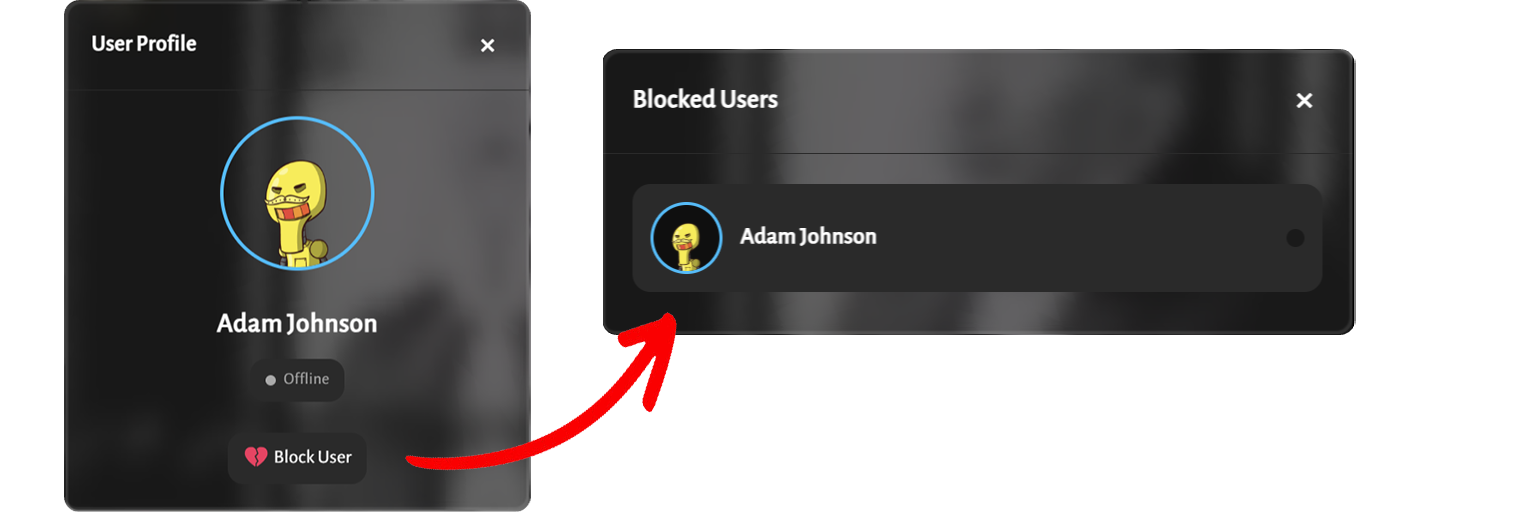
When you block a user, all messages from a user will be hidden, and you'll no longer see a message from that specific user.
You will also not receive states and reactions from a blocked user.
Chat settings

This section allows you to modify the app's internal quality settings.
Some old devices might get laggy, or sometimes frozen, when the application is in intense load.
While WatChat has advanced optimization techniques, the sole un-optimized identity of web programming prevents most Web Apps to even compete with platform native ones.
You can toggle all of the website's Liquid effects, Mutation observers, Pretty emojis (microsoft fluent flat) and Animations.
You can also clear the app's caches. There are two types of caches:
- Dynamic: Website's pages and internal files, saved locally to increase loading speed.
- Static: Media sent by users and some local files.
Deleting the Dynamic cache is always okay, and is preferred if you're experiencing bugs.
But be careful, clearing Static cache will remove all locally downloaded media (which frees some storage).
This does not delete any of your messages, and the media can be downloaded again if needed.